Get your Wildfire TV Box connected in minutes. Follow these simple steps to plug in, connect to the internet, and adjust your display settings for the best viewing experience.
Connect your Wildfire TV Box and get it ready to power on.
TV Connection
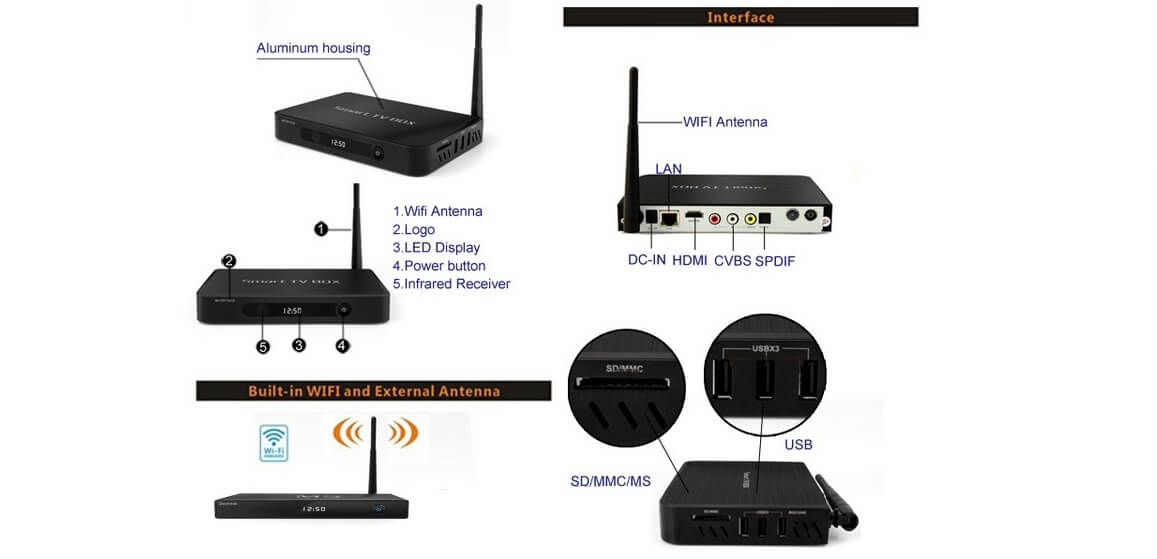
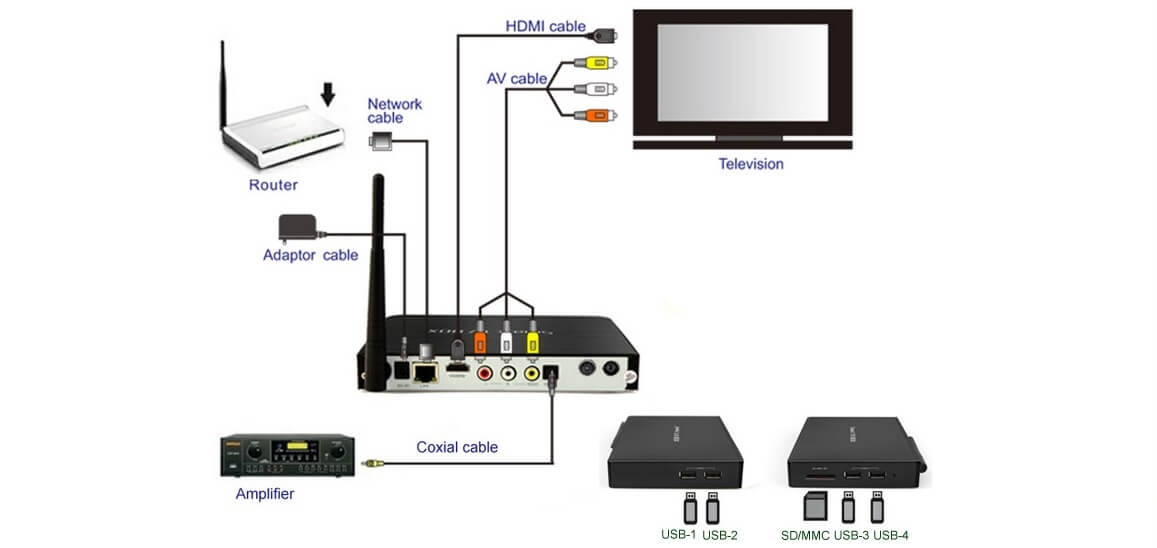
Use the HDMI cable provided to connect your Wildfire TV Box to your TV. Make sure the cable is securely inserted into both the TV and the device.
Power Connection
Connect the power adapter to your Wildfire TV Box and plug it into a power source. Once connected, the device will power on and begin the startup process.
02
CONNECT
Link your TV box to the internet and complete the network setup.
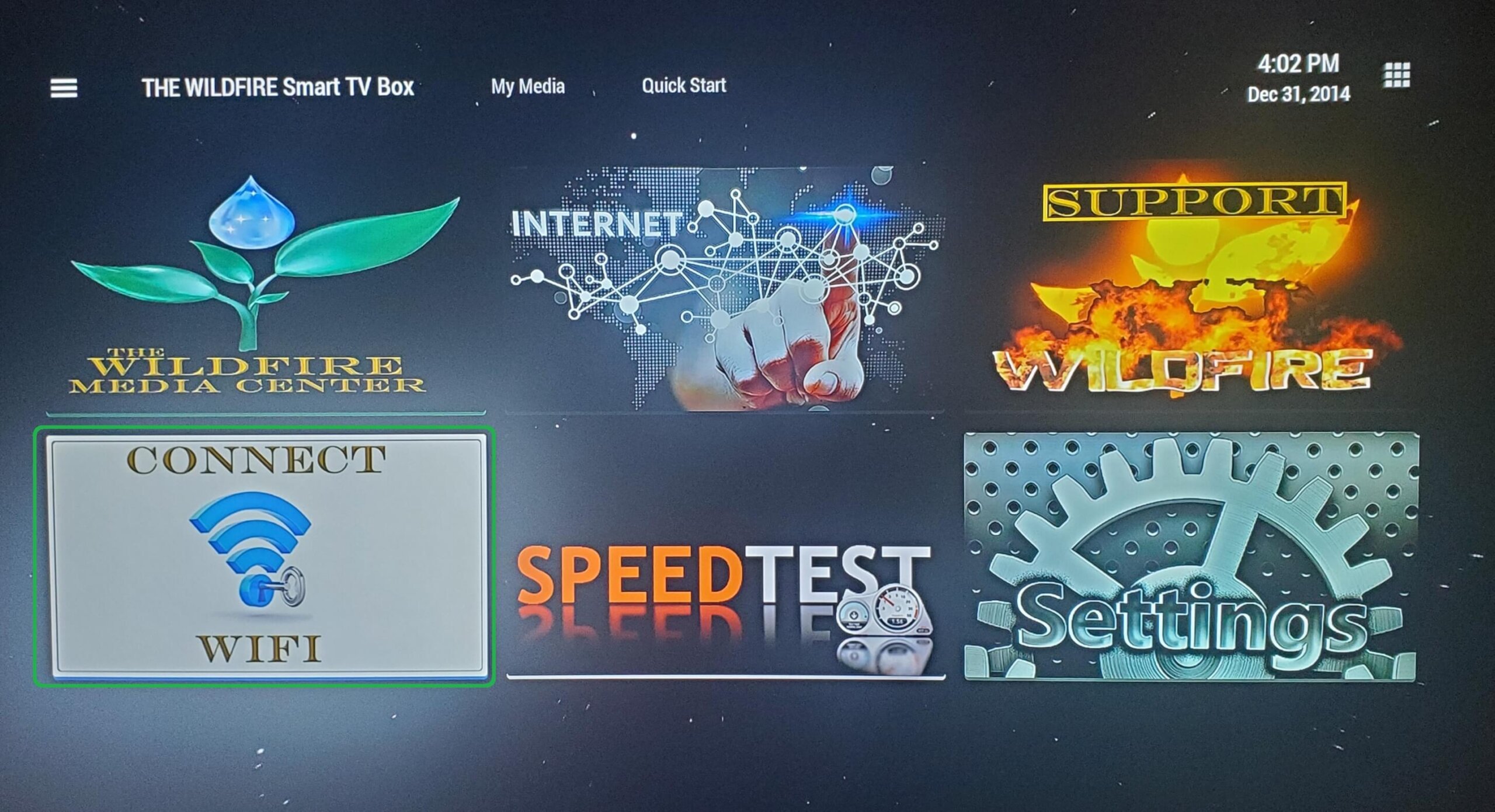
1. CLICK CONNECT WIFI
From the home screen, open Connect WIFI tile to begin WIFI set up.
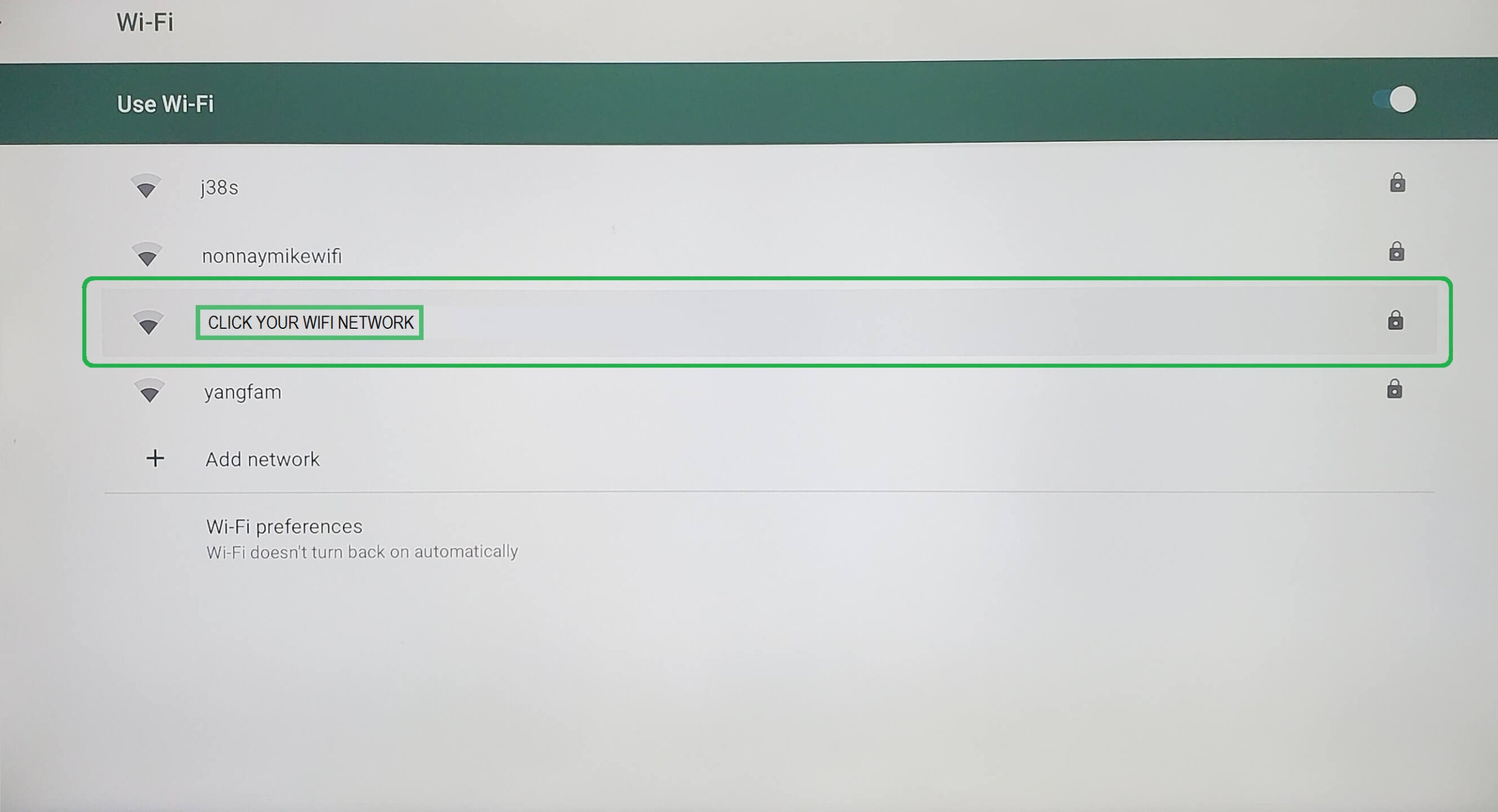
2. GO TO NETWORK
Select your WIFI Network from the list of available networks.
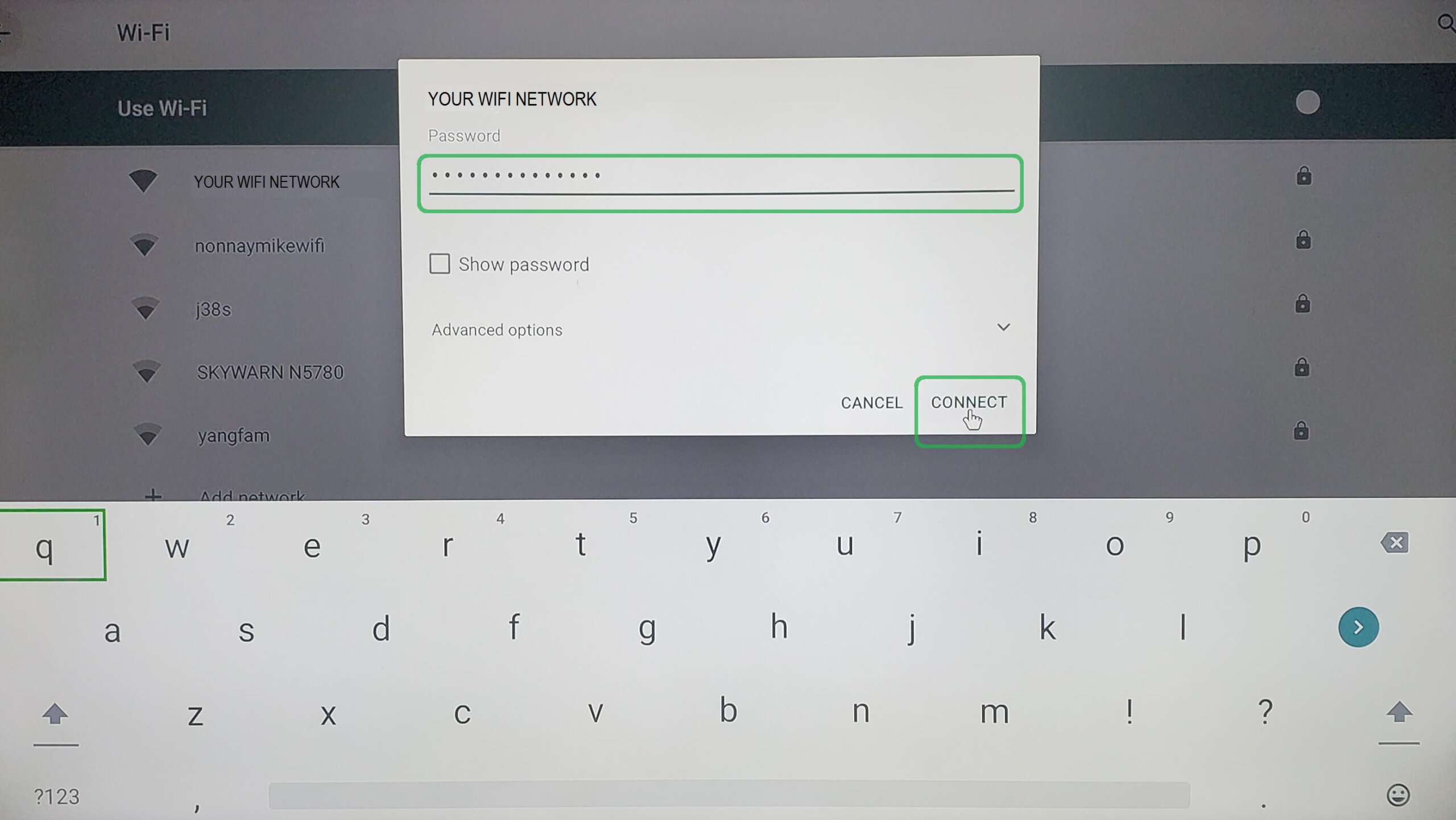
3. ENTER WIFI PASSWORD
After entering your WIFI password click on "Connect" and once you see "CONNECTED" next to your network you are done.
03
CONFIGURE
Adjust your screen settings for the best display on your TV.
1. Screen Position
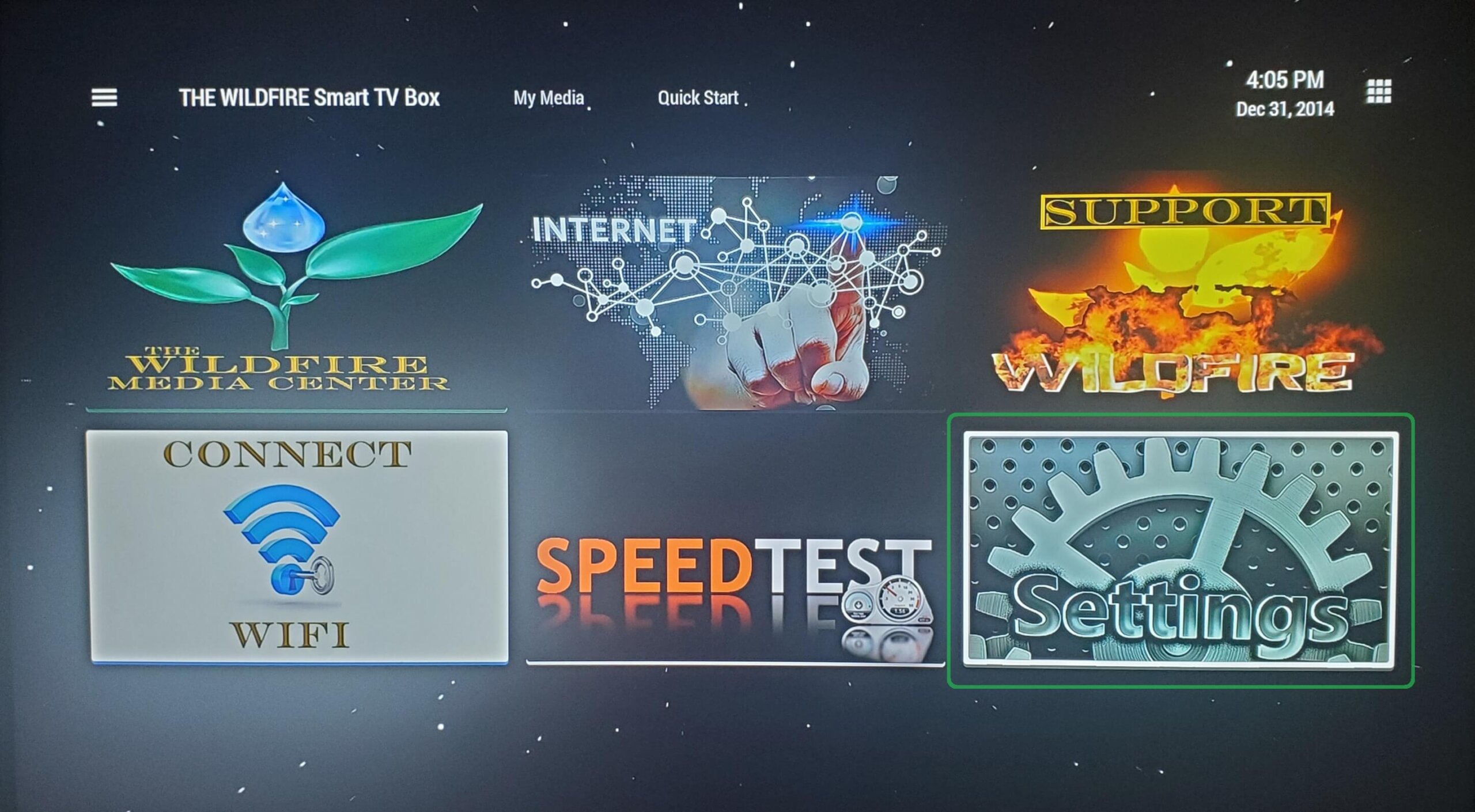
To adjust screen position click on the "Settings" tile from the home screen.
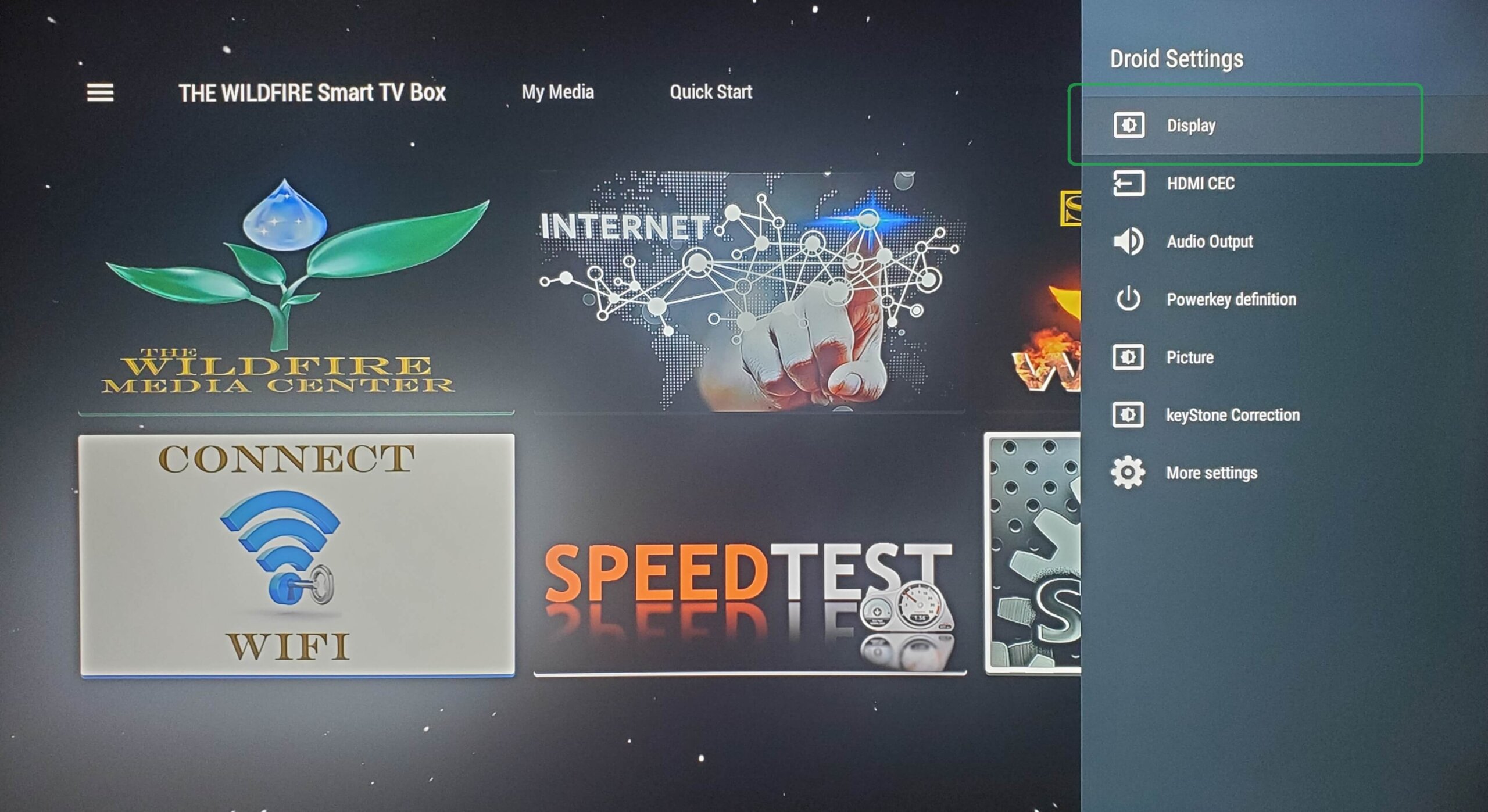
2. DROID SETTINGS
From Droid Settings click on "Display".
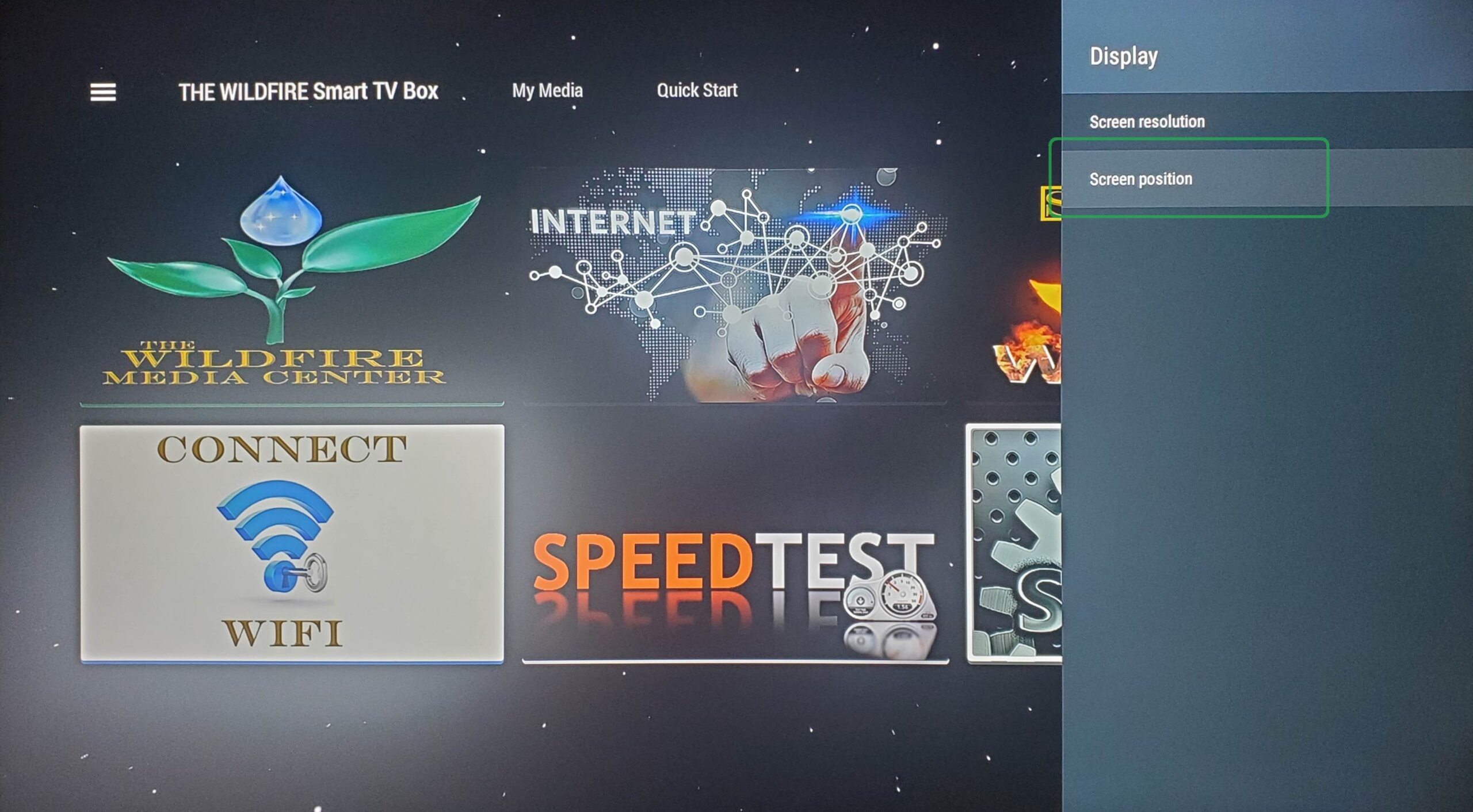
3. DISPLAY
From Display click on "Position"
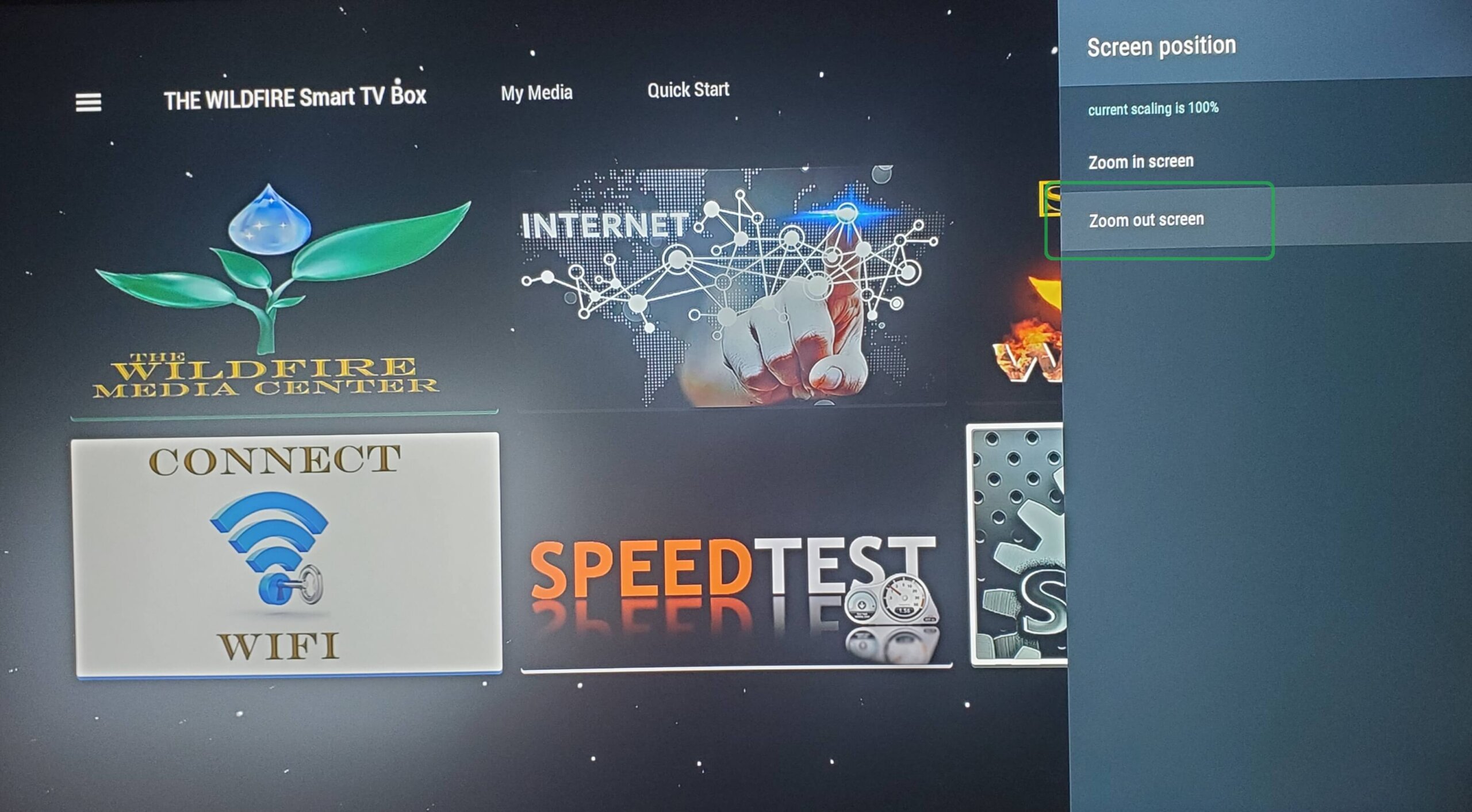
4. SCREEN POSITION
Now click "Zoom Out" a few times until you see the border appear around your TV screen. Then click "Zoom In" to line up the edge of the border to fit the size of your TV screen and your screen position will be perfectly aligned.
YOUR WILDFIRE TV BOX IS NOW SET UP AND READY TO BE ACTIVATED!
- STOP NOW -
CALL TECHNICAL SUPPORT FOR ACTIVATION OF YOUR WILDFIRE TV BOX!
☎ (888) 649-2029
TV Connection
Use the HDMI cable provided to connect your Wildfire TV Box to your TV. Make sure the cable is securely inserted into both the TV and the device.
Connect the power adapter to your Wildfire TV Box and plug it into a power source. Once connected, the device will power on and begin the startup process.
Now click “Zoom Out” a few times until you see the border appear around your TV screen. Then click “Zoom In” to line up the edge of the border to fit the size of your TV screen and your screen position will be perfectly aligned.