Get in touch with Wildfire team

Start the Conversation

Whether you need setup assistance, product guidance, technical support, or dealership information, our team is here to help. Reach out and we will assist you with everything from installation questions to general product inquiries.

TECHNICAL LINE

(888) 649-2029

GLOBAL INQUIRIES

support@buysmarttvbox.com

TECHNICAL LINE

+1- (888) 649-2029

GLOBAL INQUIRIES

support@buysmarttvbox.com

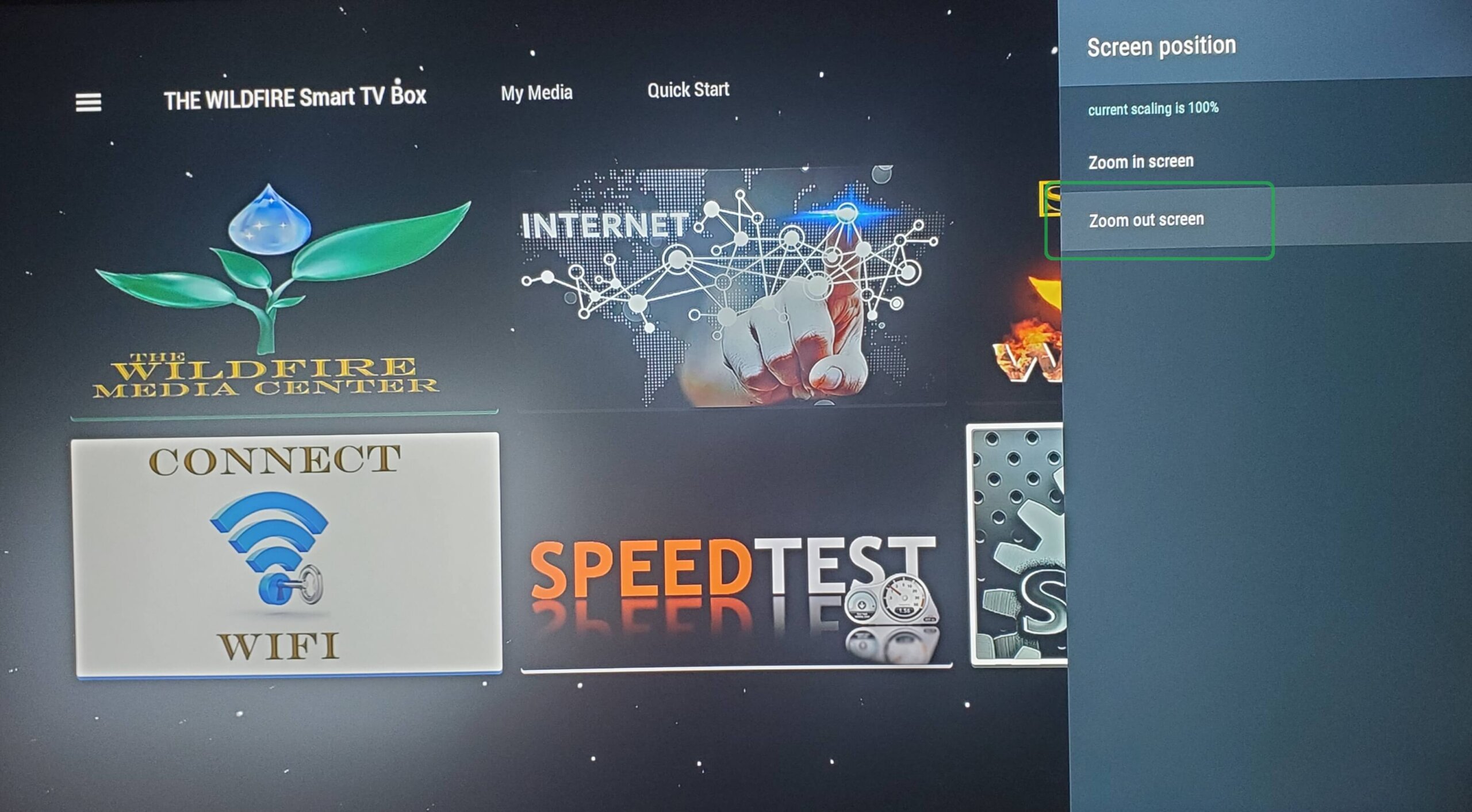
SCREEN POSITION

Now click “Zoom Out” a few times until you see the border appear around your TV screen. Then click “Zoom In” to line up the edge of the border to fit the size of your TV screen and your screen position will be perfectly aligned.


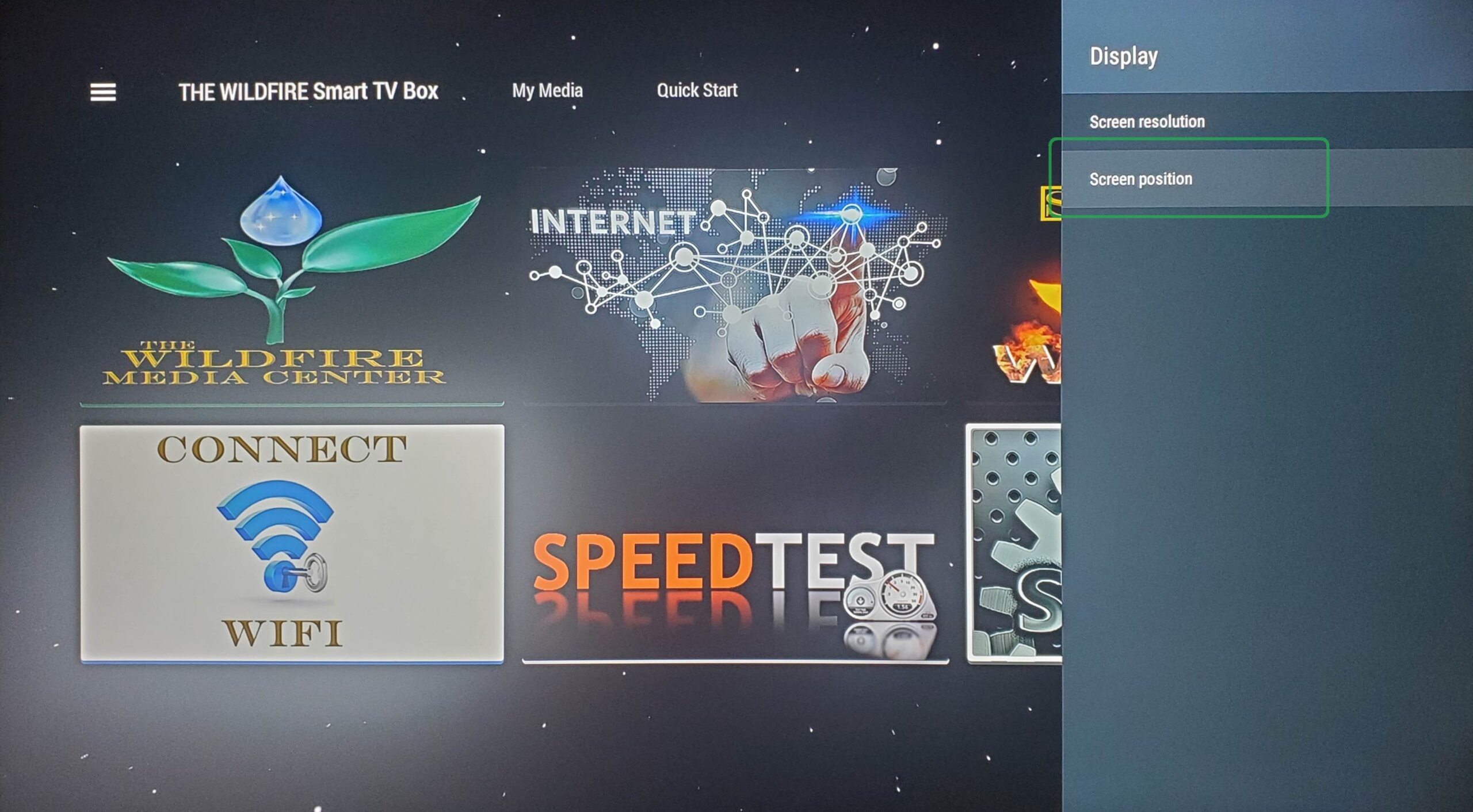
DISPLAY

From Display click on “Position”

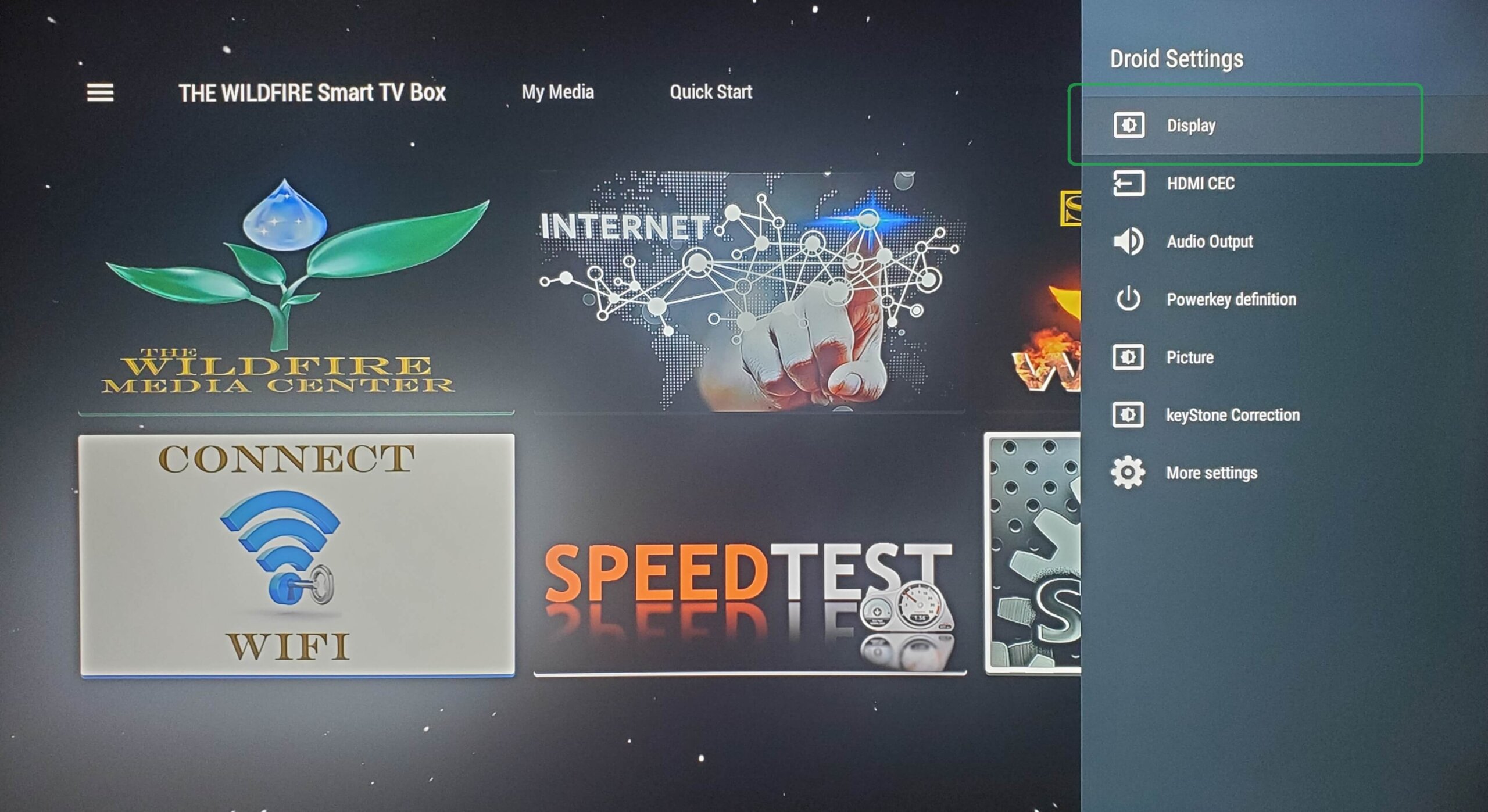
DROID SETTINGS

From Droid Settings click on “Display”.

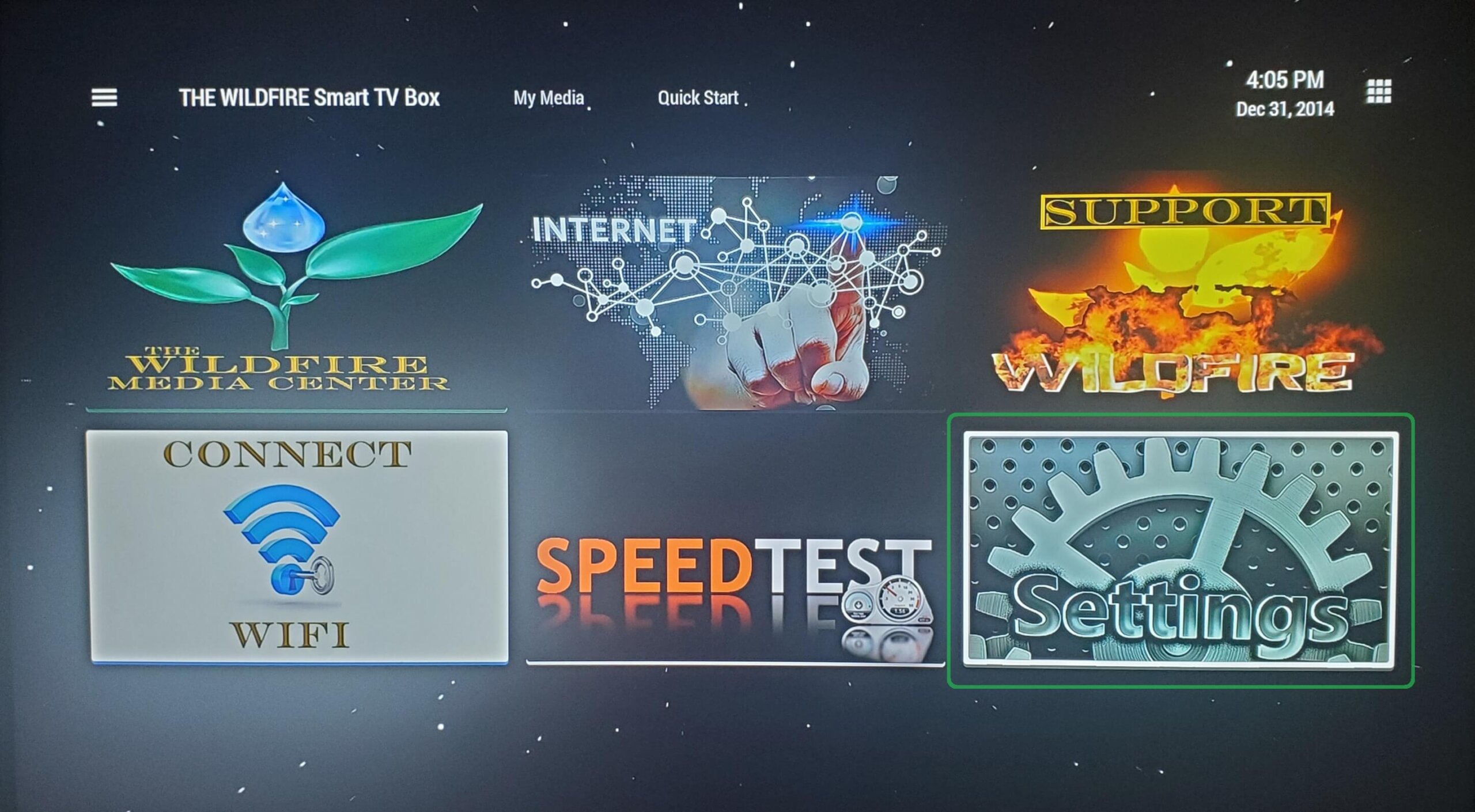
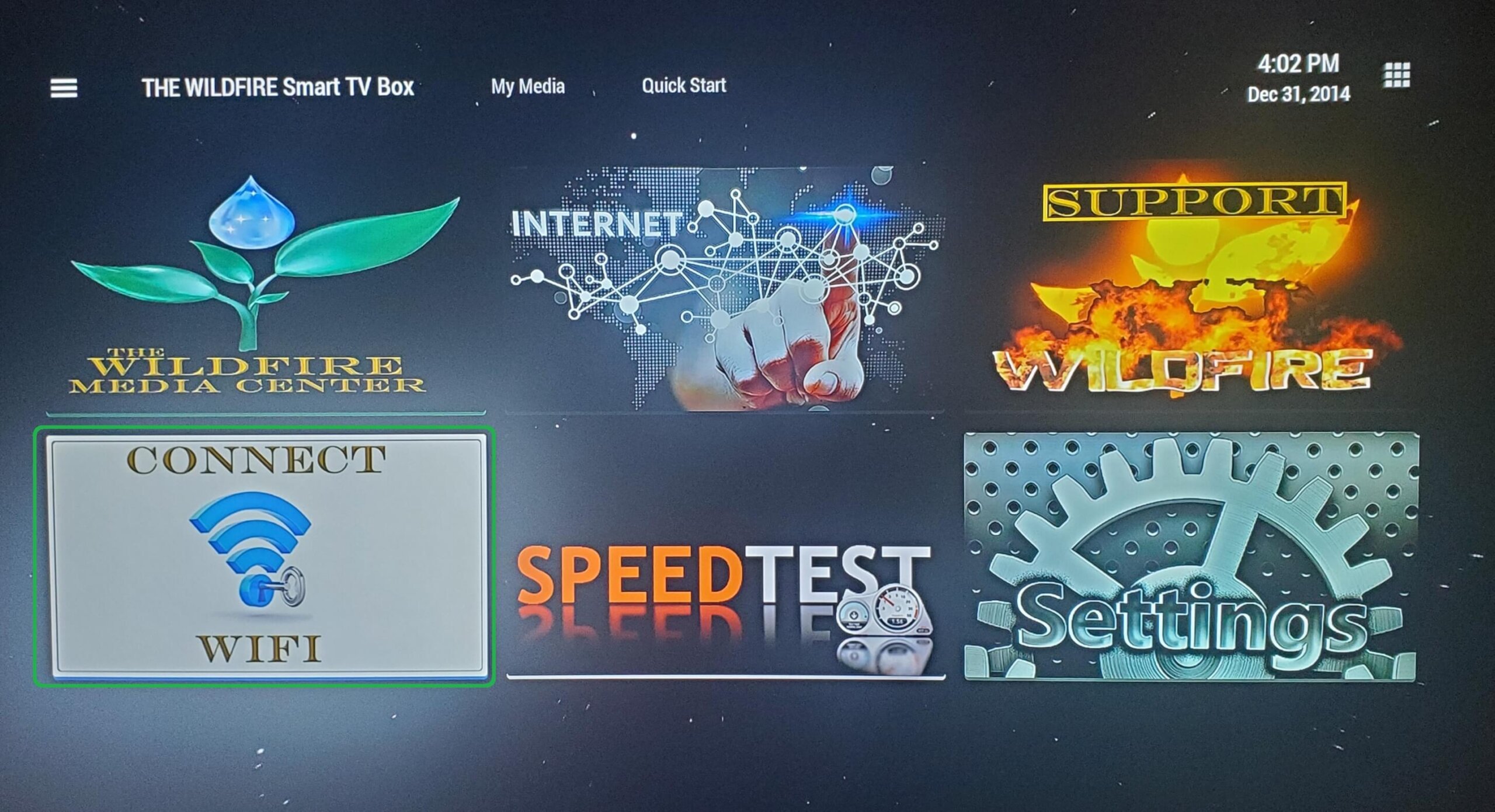
CLICK CONNECT WIFI

From the home screen, open Connect WIFI tile to begin WIFI set up.

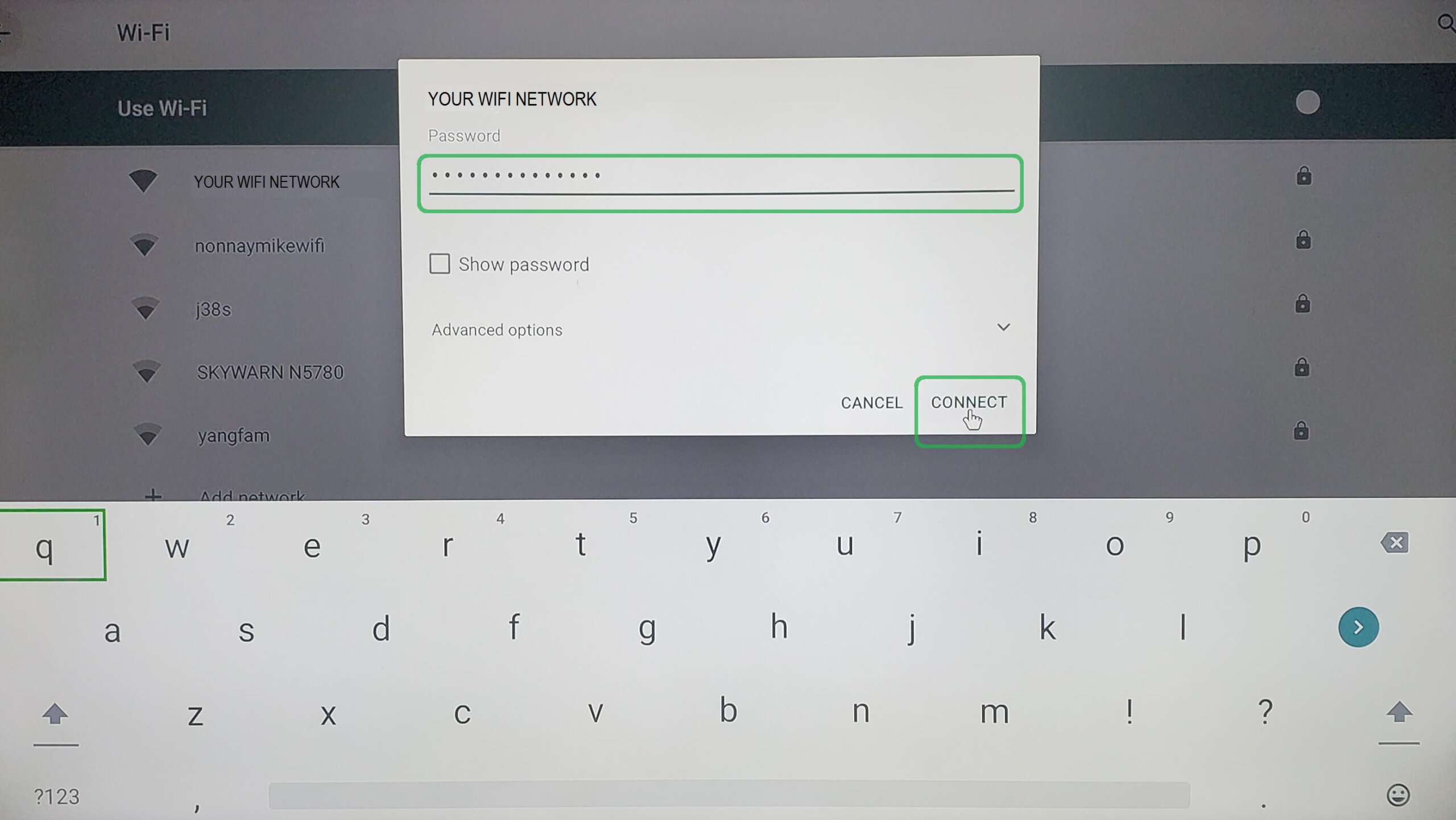
ENTER WIFI PASSWORD

After entering your WIFI password click on “Connect” and once you see “CONNECTED” next to your network you are done.

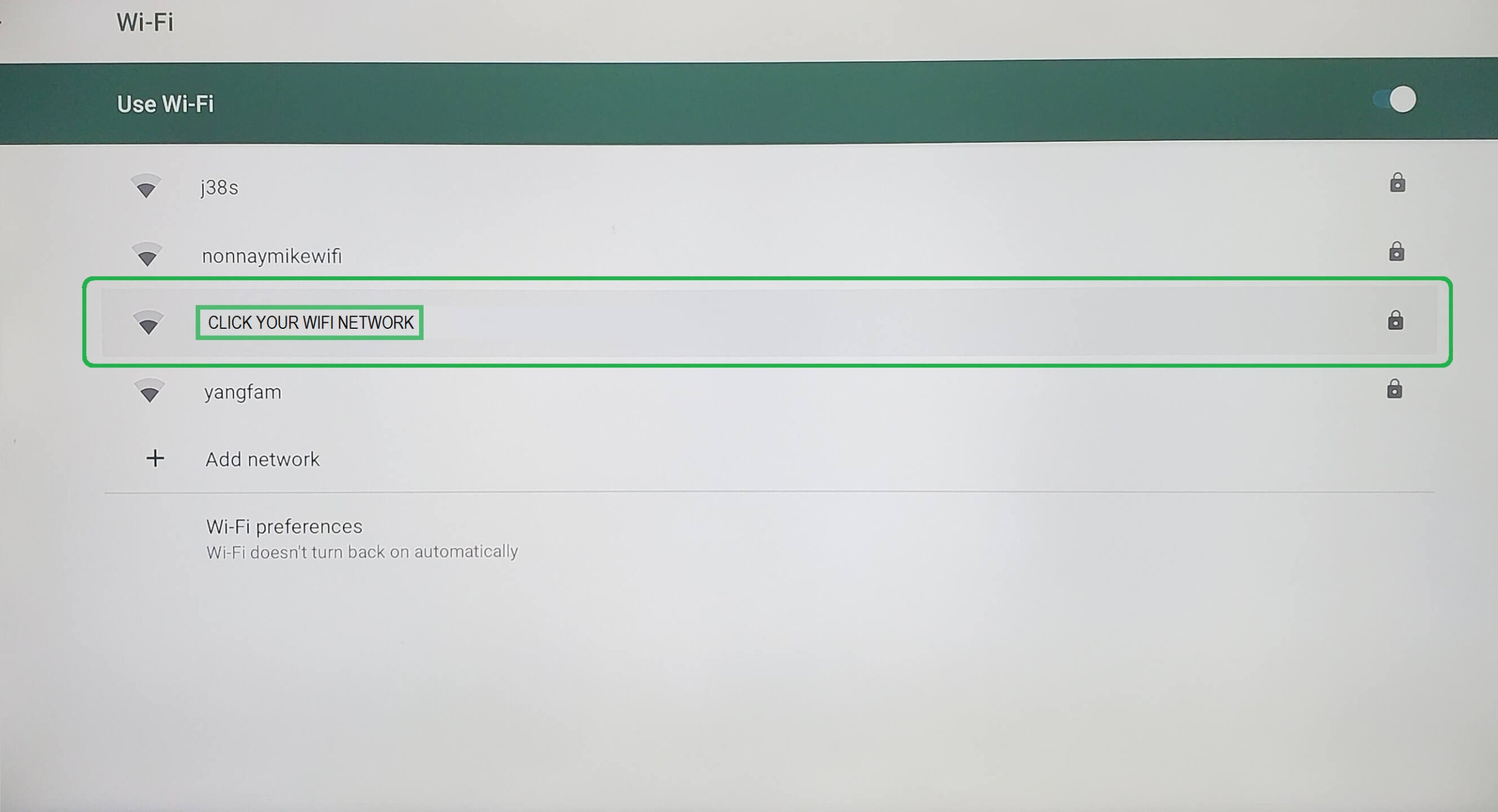
GO TO NETWORK

Select your WIFI Network from the list of available networks.


CLICK CONNECT WIFI

From the home screen, open Connect WIFI tile to begin WIFI set up.